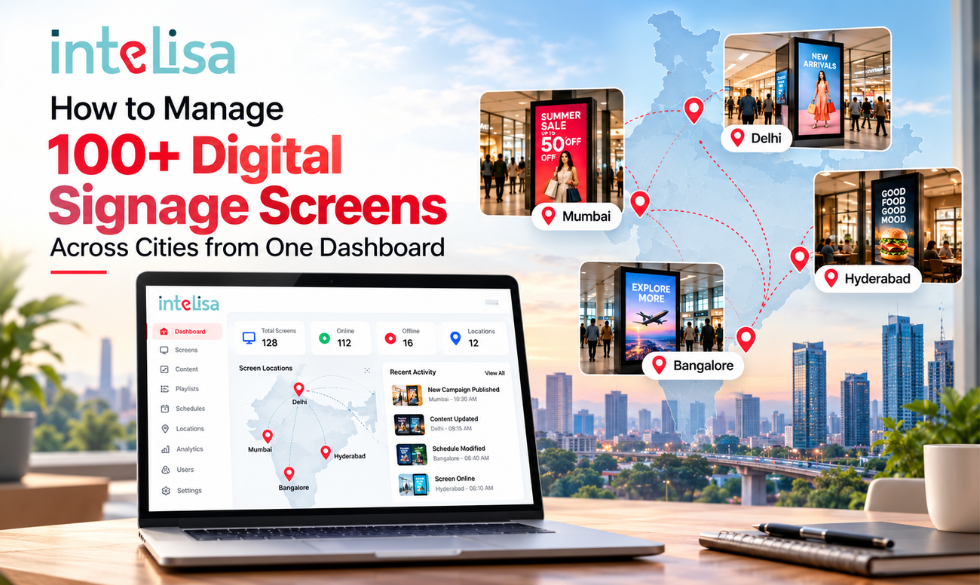
Running digital signage on five screens in one city is easy. Running it on 100, 300, or 1,000 screens spread across Mumbai, Delhi, Bengaluru, Hyderabad, and smaller towns is a different job altogether. Offers change every week, prices differ by region, some stores open late, and someone always forgets to update a screen.
The good news is that you do not need a team in every city to keep every screen right. With the right structure and a cloud digital signage software, one small central team can control an entire network from a single dashboard. This guide shows you exactly how to set it up, step by step.
Why Managing Screens at Scale Gets Hard
Most multi-location brands start small. A few screens are updated with USB drives or by store staff, and it works. Then the network grows, and the same approach breaks down.
- Outdated content: Expired offers keep playing in some stores for days because nobody updated them.
- Inconsistent branding: Each store edits its own content, so colours, fonts, and messages drift apart.
- No visibility: Head office has no idea which screens are on, off, or showing the wrong thing.
- Slow changes: A price change or urgent notice takes days to reach every location.
- Wasted staff time: Store teams spend hours on screens instead of serving customers.
The fix is not more people. It is a central system with clear structure, rules, and automation.
Step 1: Move Everything to One Cloud Dashboard
The foundation of managing 100+ screens is a cloud-based content management system (CMS). Every screen connects to the same platform, and every change is made in one place and pushed out over the internet.
- Update content once and send it to every screen, or only the ones you choose.
- Log in from a laptop or phone, from anywhere.
- Retire USB drives and local edits completely.
Choose a platform that is display agnostic, so it works with every screen type in your network, from wall-mounted LCDs and digital standees to video walls and touch kiosks. Mixed hardware is normal in large networks, and your software should not force you to replace it.
Step 2: Organise Screens into Groups and Tags
You cannot manage 100 screens one by one. Instead, organise them into a clear hierarchy so you can target any set of screens in a single click.
| Level | Example | What You Push at This Level |
|---|---|---|
| National | All India screens | Brand campaigns, festive creatives |
| Region | North, South, West, East | Regional language content, regional offers |
| City | Mumbai, Pune, Chennai | City-specific events and prices |
| Store or site | Andheri store, BKC office | Store timings, local notices |
| Screen zone | Entrance, checkout, menu board | Content that fits that spot |
Add tags for anything else that matters, such as store format (flagship, mall, high street), screen type (standee, video wall, menu board), or language. Then "all South India mall stores, checkout screens" becomes one selection instead of 40 separate updates.
Step 3: Build Master Templates with Local Zones
Brand consistency and local relevance can live on the same screen. The trick is a split-screen template with fixed and flexible zones.
Brand Zones
- Logo, colours, and fonts
- National campaigns and hero videos
- Layout and screen design
Local Zones
- Store offers and prices
- City events and notices
- Local language messages
This way, a store in Kolkata can add its own offer without touching the brand campaign, and every screen in the country still looks like one brand.
Step 4: Set Clear Roles and Permissions
When many people can edit screens, mistakes spread fast. Define who can do what before you go live.
| Role | Can Do | Cannot Do |
|---|---|---|
| Central admin | Manage all screens, templates, users, and settings | Nothing restricted |
| Marketing team | Upload and schedule campaigns network-wide | Change device settings |
| Regional manager | Update content for their region's screens | Edit other regions or brand zones |
| Store manager | Edit local zones on their own screens | Change templates or national content |
| Viewer or auditor | See reports and screen status | Make any changes |
For large networks, add an approval step so that content from regional or store teams is checked before it goes live. One wrong slide on 300 screens is a brand problem; an approval step prevents it.
Step 5: Automate with Scheduling and Dayparting
Manual updates do not scale. Scheduling does. Plan content weeks ahead and let the system switch it automatically.
- Campaign dates: Set a start and end date so offers appear and expire on time, everywhere.
- Dayparting: Breakfast menus in the morning, lunch combos at noon, and evening offers after 6 pm.
- Day of week: Weekend sale content only on Saturday and Sunday.
- Store hours: Turn screens on and off with opening times to save power and extend screen life.
- Time zones: If you also run screens abroad, schedule by local time at each location.
Plan your calendar around big moments like Diwali, end of season sales, and product launches, and load everything in advance. On the day, nothing needs to be done manually.
Step 6: Monitor Every Screen Remotely
With 100+ screens, some will go offline, lose power, or freeze. What matters is knowing before customers notice.
- Live status dashboard: See which screens are online, offline, or out of sync at a glance.
- Alerts: Get an email or message when a screen goes offline for more than a set time.
- Screenshots: Check what a screen is showing right now without visiting the store.
- Proof of play: Reports that show what played, where, and when, which is vital if you sell ad space to brands.
- Remote actions: Restart a player or push an update without sending a technician.
Step 7: Plan for Patchy Internet
In India, internet connections vary from store to store. A screen that goes blank every time the network drops hurts your brand. Make sure your platform caches content locally, so screens keep playing the last scheduled playlist even when offline, and automatically sync new content once the connection returns.
Step 8: Connect Live Data Instead of Updating by Hand
For prices, stock, queues, or KPIs, do not update screens manually. Connect them to your data.
- POS and pricing: Menu boards and price displays update automatically when prices change.
- Inventory: Hide products that are out of stock in a particular store.
- Business data: Show live production targets or sales numbers on factory and office screens.
- Social media: Pull approved posts onto screens across the network.
Step 9: Standardise Hardware and Rollout
Every new screen should be quick to add and easy to support.
- Use a small set of approved screen models and sizes for each type of location.
- Use commercial-grade displays rated for long daily use, not home TVs.
- Pre-configure players before shipping, so stores only need to plug in and connect.
- Keep a simple installation checklist: power, network, mounting height, and a test playlist.
- Record every screen's location, model, and installation date in one asset list.
A Simple Rollout Plan for 100+ Screens
| Phase | What to Do | Goal |
|---|---|---|
| 1. Pilot | Set up 5 to 10 screens in 2 or 3 stores of different formats | Test templates, workflow, and network |
| 2. Structure | Finalise groups, tags, naming, roles, and approval rules | A system ready to scale |
| 3. Regional rollout | Go live region by region, training local managers as you go | Controlled growth with fewer errors |
| 4. Automate | Add schedules, data feeds, and monitoring alerts | Less manual work every week |
| 5. Optimise | Review reports monthly and refine content by location | Better results from every screen |
Common Mistakes to Avoid
- Giving everyone full admin access.
- Skipping a naming system for screens and groups.
- Letting stores design their own layouts with no master template.
- Using consumer TVs that fail under long daily use.
- Choosing software without offline playback or monitoring alerts.
- Rolling out all locations at once without a pilot.
Checklist: Is Your Network Ready to Scale?
- All screens run on one cloud dashboard.
- Screens are organised by region, city, store, and zone.
- Master templates lock brand zones and open local zones.
- Roles, permissions, and approvals are defined.
- Campaigns and dayparts are scheduled in advance.
- Offline screens trigger alerts automatically.
- Screens keep playing when the internet drops.
- Prices and data update from live sources.
- Hardware and installation follow one standard.
- Performance is reviewed every month.
One Dashboard for Every Screen, Every City
Intelisa helps retail chains, QSRs, hospitals, and enterprises run large screen networks from a single cloud platform, with the option of on-premise deployment for strict IT needs.
- Multi-location control from one dashboard
- Scheduling, zones, and templates
- Offline playback when the internet drops
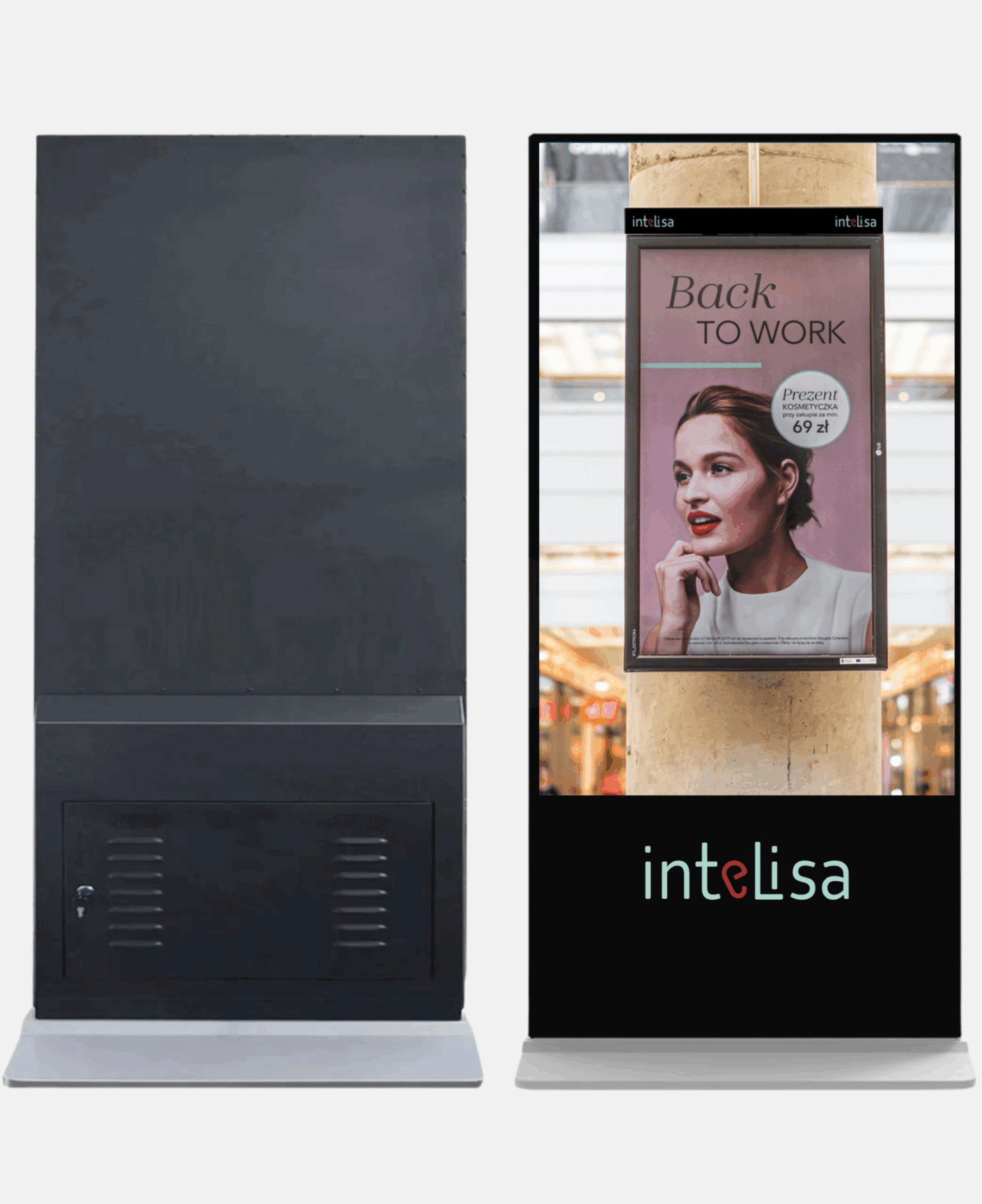
- Works with LCDs, standees, video walls, and kiosks
- Cloud and on-premise deployment options
Conclusion
Managing 100+ screens across cities is not about working harder. It is about building the right system: one cloud dashboard, a clear screen hierarchy, master templates, defined roles, automated schedules, remote monitoring, and offline resilience. Put these in place and a small central team can keep every screen in every city accurate, on-brand, and running.
If you are planning to scale your screen network, Intelisa can help you design the structure and run it from one place.
Scaling to Hundreds of Screens?
See how Intelisa lets one team manage every screen across every city. Start free for 14 days, no credit card required.
Start Your Free TrialFrequently Asked Questions
Can I manage digital signage screens in different cities from one place?
Yes. With cloud-based digital signage software, every screen connects to one online dashboard. You can update content, schedule campaigns, and check screen status for all cities from a laptop or phone, without visiting any location.
How do I show different content in different stores?
Organise screens into groups and tags by region, city, store, and screen zone. Then assign content to any group. Split-screen templates also let you keep national brand content fixed while each store shows its own local offers in a separate zone.
How do I know if a screen in another city has stopped working?
Remote monitoring shows which screens are online or offline on the dashboard, and alerts notify your team when a screen goes offline. Screenshots and proof-of-play reports confirm what each screen is showing without a site visit.
What happens if a store loses its internet connection?
With offline playback, content is stored on the screen's player, so it keeps running the scheduled playlist. When the internet returns, the player syncs new content automatically. Intelisa supports offline playback for this reason.
Can I use different screen brands and types in one network?
Yes, if your software is display agnostic. Intelisa manages LCD screens, digital standees, LED video walls, and touch kiosks from the same dashboard, so you can mix hardware across locations.
How should I roll out digital signage to 100+ locations?
Start with a pilot of 5 to 10 screens in a few store formats. Finalise your groups, templates, roles, and approvals, then roll out region by region. Add scheduling, data feeds, and monitoring alerts as you grow, and review performance every month.